Showing posts with label WebSphere. Show all posts

Wednesday, May 19, 2021

Main Difference between a Web Server and App Server

In A Server environment we frequently listen about a web server and app server . Once we know what is it and the purpose of it it is easier to differentiate and understand .

  • 1. It is not mandatory for every application to have a Web Server in it Architecture
  • 2. If the Application is internet facing then it is recommended to have a Web Server for landing page . So all the PEN Test issues related to security will be easily addressed here .
  • 3.If some one is using an App Server software from ABC vendor then Web Server is generally free of License .Example if We use IBM WebSPhere Application server then IBM Https server is free to use behind the Application server .
  • 4. For cross Vendor use need to purchase the License .

In general for a 3 tire architecture Request flow like below

Browser --> SLB --> WebServer's --> APp Server's --> Data Base

No of WebServer and AppServer can be 2 or More for a High Availability Environment .

What Is a Web Server?

A web server is usually a kind of software program that is designed to handle all of your web requests. The server is created to accept only the static contents such as HTML pages, video files, images, and much more in the form of incoming requests. After getting requested, the web server responds to the requests over the HTTP protocol with other optional data contents.

The web server is serving all the contents of the World Wide Web and make them accessible to its end users. This refers to a kind of system that consists of both software and hardware web contents as per the end-users.

In simple terms, the webserver is a computer that delivers web pages when they are requested for accessing the content by the end-users. Apache fulfills this approach in current days as it is the most popularly and widely used open-source web server developed and fully maintained by the Apache Software Foundation.

What Is an Application Server?

The application server is frequently mistaken for the webserver and that as though they offer same administrations however in all actuality, it utilizes different techniques to process the majority of the applications which are started by the webserver.

This permits to have and convey top of the line business applications that are comprising of a 3-level application Graphical User Interface(GUI) which incorporates exchange server, a database, and an application server.

The primary purpose of the application server is to serve the right business logic to the mobile app programs using variant protocols that include HTTP. Be sure that it is not restricted to do the same. Being a software framework that facilitates both web-based and enterprise-based applications, it does not only serve the static content but also suited for serving the dynamic content and application transfer from one device to another.

We will see some of the main differences on the below table .

No.KeyWeb ServerApplication Server
1PurposeWeb Server contains Web container only.Application Server contains Web Container plus EJB Container.
2UsefulA web server is good in case of static contents like static html pages.Applcation server is relevant in case of dynamic contents like bank websites.
3Resource ConsumptionWeb server consumes less resources like CPU, Memory etc. as compared to application server.Application server utilizes more resources.
4Target EnvironmentWeb Server provides the runtime environment for web applications.Application server provides the runtime environment for enterprise applications.
5Multithreading supportMultithreading is not supported.Multithreading is supported.
6Protocol(s) supportedWeb Server supports HTTP Protocol.Application Server supports HTTP as well as RPC/RMI protocols.
7Load BalancerIt can act as Load balancer for all the back end Application serverApplication server itself will not have that feature .
8HTTP MethodsMajority of HTTP methods are directly controlled from Web Server configuration like TRACEWill not have controls on all types of Application server
9ExampleAOL Server
Apache HTTP
IIS
Nginx
Boa
Tux/kHTTPd
IBM HTTP
HFS
Oracle I-Planet
Weblogic
Websphere
Glass Fish
JBoss eap
Oracle Application server
Boreland
Tomcat
Cold Fusion

Friday, May 14, 2021

WebSphere Application server performance tuning & Connection Pooling

 Runtime provisioning

Runtime provisioning is a feature introduced in WebSphere Application Server V7. It focuses on improving application server startup time by providing intelligent analysis of application set and server configuration to determine the needed subset of components to be loaded. This feature does not load an entire runtime library and thus decreases the memory footprint and shortens the start time.

There is no need for administrators and application developers to modify any processes to take advantage of the runtime provisioning. To turn this feature on, complete the following steps:

  • Click Servers > Server Types > WebSphere application servers, as shown below:WebSphere application servers window
  • In the Application servers view, select your desired application server, as shown below: WebSphere application server view server selection
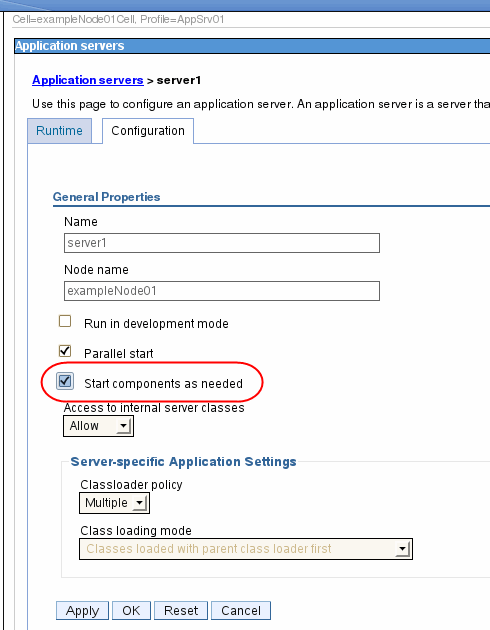
  1. Select Start component as needed to enable runtime provisioning in this server, as shown below:Application servers configuration window

Configuring the JVM

As part of configuring an application server, you might define settings that enhance the way your operating system uses of the Java virtual machine (JVM).

The JVM is an interpretive computing engine that is responsible for running the byte codes in a compiled Java program. The JVM translates the Java byte codes into the native instructions of the host machine. The application server, being a Java process, requires a JVM to run and to support the Java applications running on it. JVM settings are part of an application server configuration.

To view and change the JVM configuration for an application server process, use the Java virtual machine page of the administrative console or use wsadmin scripts to change the configuration.

  • In the administrative console, click Servers > Server Types > WebSphere application servers > server_name.
  • Under Server Infrastructure, click Java and Process Management > Process definition.
  • Select Java Virtual Machine.
  • Specify values for the JVM settings in Generic JVM arguments text area as needed, and click OK.
  • Click Save in the messages section of the administrative console panel to save the changes to the master configuration.
  • Restart the application server.

Garbage collection (GC) is an integral part of the Java Virtual Machine (JVM) as it collects unused Java heap memory so that the application can continue allocating new objects. The effectiveness and performance of the GC play an important role in application performance and determinism. The IBM JVM provided with IBM WebSphere Application Server V8 (on supported platforms) provides four different GC policy algorithms:

  • -Xgcpolicy:optthruput
  • -Xgcpolicy:optavgpause
  • -Xgcpolicy:gencon (default in WAS 8)
  • -Xgcpolicy:balanced

Each of these algorithms provides different performance and deterministic qualities. In addition, the default policy in WebSphere Application Server V8 has changed from -Xgcpolicy:optthruput to the -Xgcpolicy:gencon policy.

Configuring connection pooling properties

Performance of an application that connects to a database can be greatly affected by the availability of connections to the database and how those connections affect the performance of the database itself. There are no simple rules that tell you how to configure the connection pool properties. Your configuration is highly dependent on application, network, and database characteristics. You need to coordinate the values that you specify in WebSphere closely with the database administrator.

Complete the following steps to access the connection pool properties:

  1. Navigate to Resources > JDBC > Data sources and click the data source name.
  1. Click Connection pool properties in the Additional Properties section.

The window shown in figure below opens

  1. Specify the following information:
    • Connection TimeoutSpecify the interval, in seconds, after which a connection request times out and a ConnectionWaitTimeoutException is thrown. This action can occur when the pool is at its maximum (Maximum Connections) and all of the connections are in use by other applications for the duration of the wait.For example, if Connection Timeout is set to 300 and the maximum number of connections is reached, the Pool Manager waits for 300 seconds for an available physical connection. If a physical connection is not available within this time, the Pool Manager throws a ConnectionWaitTimeoutException.Tip: If Connection Timeout is set to 0, the pool manager waits as long as necessary until a connection is allocated.
    • Maximum ConnectionsSpecify the maximum number of physical connections that can be created in this pool.These connections are the physical connections to the back-end database. After this number is reached, no new physical connections are created and the requester waits until a physical connection that is currently in use is returned to the pool, or a ConnectionWaitTimeoutException is thrown.For example, if Maximum Connections is set to 5, and there are five physical connections in use, the Pool Manager waits for the amount of time specified in Connection Timeout for a physical connection to become free. If, after that time, there are still no free connections, the Pool Manager throws a ConnectionWaitTimeoutException to the application.
    • Minimum ConnectionsSpecify the minimum number of physical connections to be maintained. Until this number is reached, the pool maintenance thread does not discard any physical connections. However, no attempt is made to bring the number of connections up to this number.For example, if Minimum Connections is set to 3, and one physical connection is created, that connection is not discarded by the Unused Timeout thread. By the same token, the thread does not automatically create two additional physical connections to reach the Minimum Connections setting.
    • Reap TimeSpecify the interval, in seconds, between runs of the pool maintenance thread.For example, if Reap Time is set to 60, the pool maintenance thread runs every 60 seconds. The Reap Time interval affects the accuracy of the Unused Timeout and Aged Timeout settings. The smaller the interval you set, the greater the accuracy. When the pool maintenance thread runs, it discards any connections that have been unused for longer than the time value specified in Unused Timeout, until it reaches the number of connections specified in Minimum Connections. The pool maintenance thread also discards any connections that remain active longer than the time value specified in Aged Timeout.Tip: If the pool maintenance thread is enabled, set the Reap Time value less than the values of Unused Timeout and Aged Timeout.The Reap Time interval also affects performance. Smaller intervals mean that the pool maintenance thread runs more often and degrades performance.
    • Unused TimeoutSpecify the interval in seconds after which an unused or idle connection is discarded.Tips:
      • Set the Unused Timeout value higher than the Reap Timeout value for optimal performance. Unused physical connections are only discarded if the current number of connections not in use exceeds the Minimum Connections setting.
      • Make sure that the database server's timeout for connections exceeds the Unused timeout property specified here. Long lived connections are normal and desirable for performance.For example, if the unused timeout value is set to 120, and the pool maintenance thread is enabled (Reap Time is not 0), any physical connection that remains unused for two minutes is discarded. Note that accuracy of this timeout, as well as performance, is affected by the Reap Time value. See the Reap Time bullet for more information.
    • Aged TimeoutSpecify the interval in seconds before a physical connection is discarded, regardless of recent usage activity.Setting Aged Timeout to 0 allows active physical connections to remain in the pool indefinitely. For example, if the Aged Timeout value is set to 1200, and the Reap Time value is not 0, any physical connection that remains in existence for 1200 seconds (20 minutes) is discarded from the pool. Note that accuracy of this timeout, as well as performance, is affected by the Reap Time value. See Reap Time for more information.Tip: Set the Aged Timeout value higher than the Reap Timeout value for optimal performance.
    • Purge PolicySpecify how to purge connections when a stale connection or fatal connection error is detected.Valid values are EntirePool and FailingConnectionOnly. If you choose EntirePool, all physical connections in the pool are destroyed when a stale connection is detected. If you choose FailingConnectionOnly, the pool attempts to destroy only the stale connection. The other connections remain in the pool. Final destruction of connections that are in use at the time of the error might be delayed. However, those connections are never returned to the pool.Tip: Many applications do not handle a StaleConnectionException in the code. Test and ensure that your applications can handle them.

WebSphere Application Server data source properties

You can set the properties that apply to the WebSphere Application Server connection, rather than to the database connection. To access the connection pool properties, navigate to Resources > JDBC > Data sources and click the data source name.

Click WebSphere Application Server data source properties in the Additional Properties section.

Clicking the link opens the window shown in figure below.

Specify the following information:

  • Statement cache sizeSpecify the number of prepared statements that are cached per connection. A prepared statement is a precompiled SQL statement that is stored in a prepared statement object. This object is used to execute the given SQL statement multiple times. The WebSphere Application Server data source optimizes the processing of prepared statements.In general, the more statements your application has, the larger the cache should be. For example, if the application has five SQL statements, set the statement cache size to 5, so that each connection has five statements.Tip: This setting is vital to performance of the database and will most likely require tuning to suit the specific application. In general, the default is not high enough for best performance.
  • Enable multithreaded access detectionIf you enable this feature, the application server detects the existence of access by multiple threads.
  • Enable database reauthenticationConnection pool searches do not include the user name and password. If you enable this feature, a connection can still be retrieved from the pool, but you must extend the DataStoreHelper class to provide implementation of the doConnectionSetupPerTransaction() method where the reauthentication takes place.Connection reauthentication can help improve performance by reducing the impact of opening and closing connections, particularly for applications that always request connections with different user names and passwords.
  • Enable JMS one-phase optimization supportActivating this support enables the Java Message Service (JMS) to get optimized connections from the data source. Activating this support also prevents JDBC applications from obtaining connections from the data source.
  • Log missing transaction contextSpecifies whether the container issues an entry to the activity log when an application obtains a connection without a transaction context.
  • Non-transactional data sourceSetting the flag to true will cause the Application Server to never enlist the connections from the data source in global or local transactions. Applications must explicitly call setAutoCommit(false) on the connection if they want to start a local transaction on the connection, and they must commit or roll back the transaction that they started. This property should rarely be set to true.
  • Error detection modelThe error detection model has been expanded and the data source has a configuration option that you can use to select the exception mapping model or the exception checking model for error detection.
  • Connection validation propertiesThere are two properties, and you can choose both. If you select the Validate new connections check box, the application server tries to connect to the database. If you select this property, you can specify how often, in seconds (interval).If you select the Validate existing pooled connections check box, the application server retries to make a connection. If you select this property, you can specify the retry interval for the server reroute. The pretest SQL string is sent to the database to test the connection.Tip: Connection validation by SQL query is deprecated in WebSphere Application Server V8.0. You can use validation by the JDBC Driver instead. If you use the property of validation by JDBC driver, you need JDBC 4.0 or later. If you do not have JDBC 4.0, you have to update the JDBC driver first.

Wednesday, May 12, 2021

Unable to login to Websphere console with ldap id

 User's are unable to login to Websphere admin console where LDAP is integrated . From the logs we could see below error

00000048 SSLHandshakeE E SSLC0008E: Unable to initialize SSL connection. Unauthorized access was denied or security settings have expired. Exception is javax.net.ssl.SSLException: Unrecognized SSL message, plaintext connection? at com.ibm.jsse2.b.a(b.java:33) at com.ibm.jsse2.nc.a(nc.java:456) at com.ibm.jsse2.nc.unwrap(nc.java:373) at javax.net.ssl.SSLEngine.unwrap(SSLEngine.java:26) at com.ibm.ws.ssl.channel.impl.SSLConnectionLink.readyInbound(SSLConnectionLink.java:534) at com.ibm.ws.ssl.channel.impl.SSLConnectionLink.ready(SSLConnectionLink.java:294) at com.ibm.ws.tcp.channel.impl.NewConnectionInitialReadCallback.sendToDiscriminators(NewConnectionInitialReadCallback.java:214) at com.ibm.ws.tcp.channel.impl.NewConnectionInitialReadCallback.complete(NewConnectionInitialReadCallback.java:113)

Since we are unable to login to Websphere admin console .Lets try to disable the security manually

To disable security manually follow below steps

1.Take backup of security.xml file located in <PROFILE_HOME>/config/cells/CellName/security.xml

2.update enabled="true" to enabled="false" on the first occurrence in security.xml file then kill the admin process that is running as we cannot stop since we don't have working userid and password .

hi-lighted string decide the security of admin console .It will act as a switch to on/off

3.start the dmgr or AppNode Now we should be able to login to Admin without userid & password

Once logged in, proceed to "Security -> SSL certificate and key management".

image 3874

From there, select "Key stores and certificates -> NodeDefaultKeyStore -> Personal certificates".

image 3869

Once the configured certificates are displayed, you have to check the expiration of the certificate. 

If the certificate's are still valid then issue might be due to certificate validation add below JVM argument and restart the server

  • -Dcom.sun.jndi.ldap.object.disableEndpointIdentification=true to avoid possible "No subject alternative names"
Follow below steps to add JVM argument in WebSphere Application Server
-->Login to Admin console .In the left pane, expand the Servers node.
-->Click Application Servers. Then click the name of the server that you want to configure.
-->Select Process Definition ► Java Virtual Machine.
-->Provide the JVM options in the Generic JVM Arguments text box.
   Example : -Dcom.sun.jndi.ldap.object.disableEndpointIdentification=true
Click Apply. Then click Save to save the changes to the master configuration.
-->Restart the server so that the new settings are used.

You can verify in the ps -ef |grep -i WebSphere output for the newly added JVM argument .

4. Then go security.xml file and change back to enabled="true" . Kill the admin process then start it try to login to admin console with LDAP id and password .

Issue might be due to Websphere patch update where JAVA is updated and started validating subject alternative names . Issue resolved with above JVM argument . 

How to start nodeAgent on Websphere

 We will see how to startNode agent on Websphere .

Some times, upon rebooting your computer, Websphere (Network Deployment) will start but the node agent won't. The node agent is responsible for spawning and killing server processes and also responsible for configuration synchronization between the Deployment Manager and the Node. None of the distributed products would work if the node agent isn't up. You will not be able to start the node agent from the Websphere Admin Console GUI. You will have to start it from the command line utility.

To start Node agent for a specific App node we should navigate to that profile bin .From there only we will be able to start it

Steps to start Node Agent on Windows server

  1. Open up a Command Prompt as an administrator (right-click -> Run as administrator)
  2. Navigate to you Websphere server bin directory: ie C:/Program Files/IBM/Websphere/profile2/profiles/AppSrv01/bin
  3. Run startNode.bat
  4. You should see the confirmation saying "node agent is open for e-business".
  • Now log back into the WAS Admin Console. Click on "System Administration" -> node agents -> refresh the status. You should see a green arrow upon refresh.
  • Now you can start your cluster or server by clicking on "Servers" on the left panel from the DMGR Admin console .

On Linux/AIX server use startNode.sh .remaining all the steps are same .

For each App Node there will be only one nodeAgent associated that required to start to manage any services under it from DMGR Admin console .

Disable Webshpere security manually

 In Websphere there is a possiblility to disable Admin security and login to Admin console without userid and password . This feature is not available in JBOSS EAP, Weblogic Server etc

Below steps are applicable for both DMGR and Standalone websphere nodes .

Generally we don't require this .but there might a situation where one the following reasons

  • Someone changed the password or the password is locked if it is LDAP Account .
  • we may forget the credential . There is no way to get the working credentials .
  • Messed up the SSL/Security configuration or security.xml

To disable security manually follow below steps

1.Take backup of security.xml file located in <PROFILE_HOME>/config/cells/CellName/security.xml

2.update enabled="true" to enabled="false" on the first occurrence in security.xml file then kill the admin process that is running as we cannot stop since we don't have working userid and password .

hi-lighted string decide the security of admin console .It will act as a switch to on/off

3.start the dmgr or AppNode Now we should be able to login to Admin without userid & password

4.Do what ever changes we need to reset the password and other configuration's if need to do then go security.xml file and change back to enabled="true"

5.kill the Admin process and start Admin now we should be able to login to Admin console successfully with new password .

Other way

We can also disable security by using wsadmin commands

1.connect to wsadmin

wsadmin>securityoff
LOCAL OS security is off now but you need to restart server1 to make it affected.
wsadmin>

2.kill the admin process 

3.start Admin process

4.Login to Admin console and do the necessary changes

5.connect to wsadmin and run securityon to enable security back 

wsadmin>securityoff

6.Restart DMGR or Admin Node and login with new password .

Enable WebSphere global security using Local operating system


Create a Windows user for WebSphere

  1. Log in to Windows by using an administrator user account.
  2. Select Start > Control Panel > Administrative Tools > Computer Management > Local Users and Groups.
  3. Right-click Users and select New User.
  4. Type a user name and password in the appropriate boxes, and type any other information you require in the remaining boxes.
  5. Deselect User Must Change Password At Next Login, click Create, and then click Close.
  6. Click Users, right-click the user you just created and select Properties.
  7. Click the Member Of tab and then click Add.
  8. In the Enter The Object Names To Select box, type Administrators, click Check Names to ensure that the group name is correct.
  9. Click OK and then click OK again.
  10. Select Start > Control Panel > Administrative Tools > Local Security Policy > Local Policies.
  11. Click User Rights Assignment, and then right-click Act as Part of the Operating System and select Properties.
  12. Click Add User or Group.
  13. In the Enter The Object Names To Select box, type the name of the user you created in step 4, click Check Names to ensure that the name is correct, and then click OK.
  14. Click OK to close the Act As Part Of The Operating System Properties dialog box.

Create a Linux or UNIX user for WebSphere

  1. Log in as the root user.
  2. Create a user by entering the following command in a command prompt:
    • (Linux and Sun Solaris) useradd
    • (IBM AIX) mkuser
  3. Set the password of the new user by entering passwd in the command prompt.
  4. (Linux and Solaris) Create a shadow password file by entering pwconv (with no parameters) in the command prompt.NOTE(Linux and Solaris) For WebSphere Application Server Local OS security registry to work, a shadow password file must exist. The shadow password file is usually named /etc/shadow* and is based on the /etc/passwd file. If the shadow password file does not exist, an error occurs after enabling global security and configuring the user registry as Local OS.*
  5. Open the group file from the /etc directory in a text editor.
  6. Add the user who you created in step 2 to the root group.
  7. Save and close the file.
  8. (UNIX with SSL enabled) Start and stop WebSphere as the root user.

Enabling Global security

1) Log onto your WebSphere Application Administrative console.

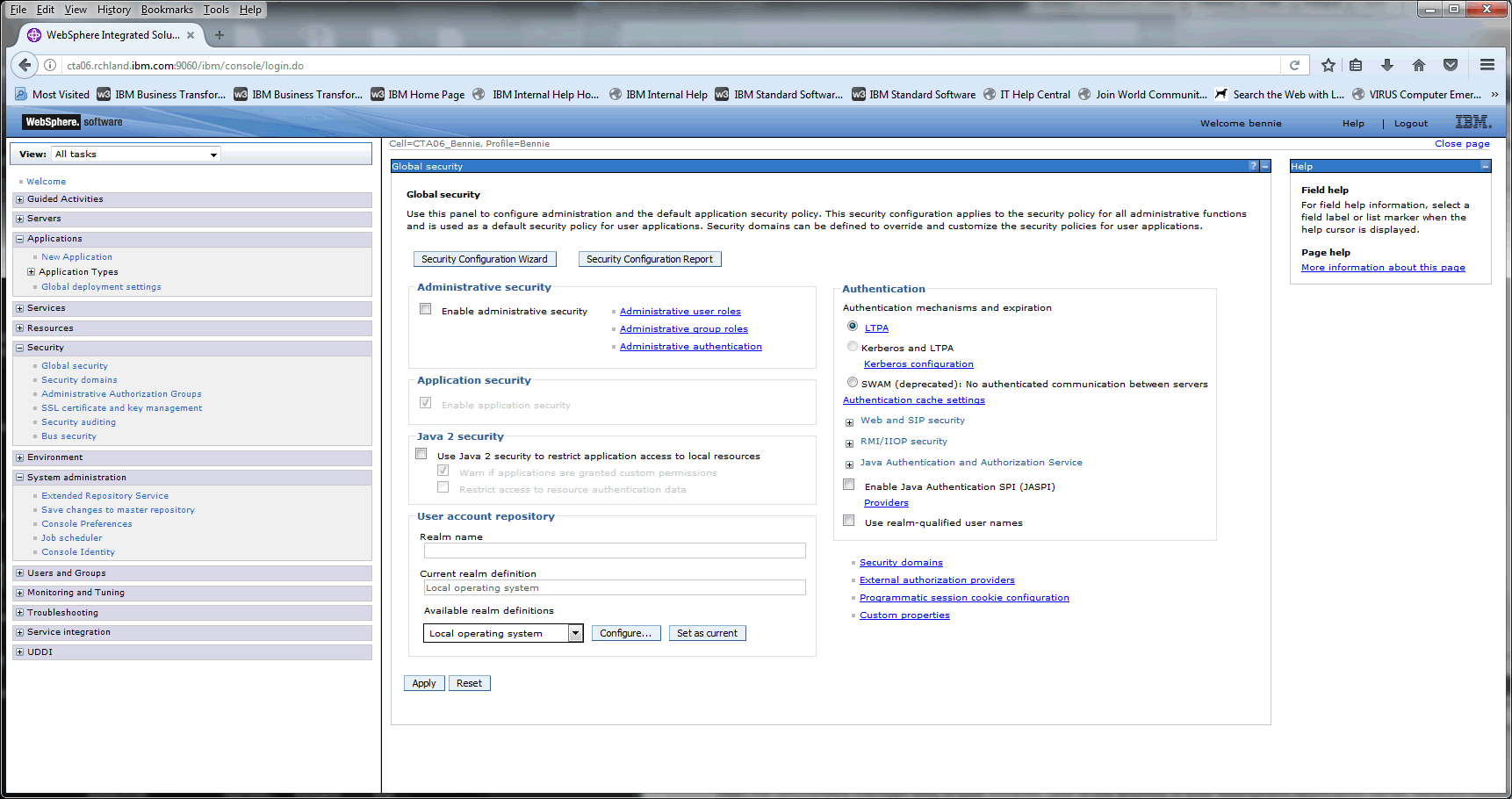
2) Select Security - Global Security

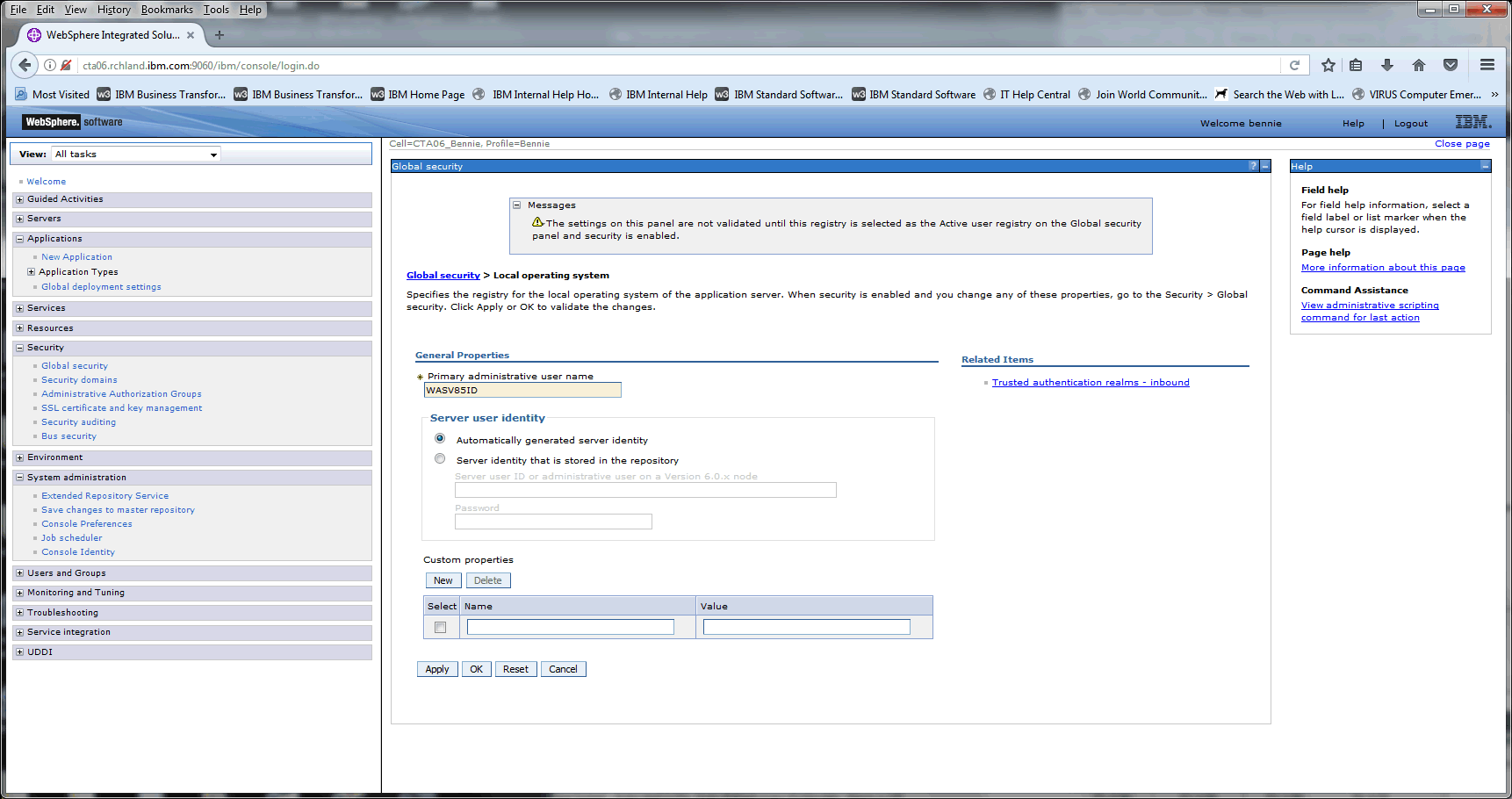
3) Ensure Local operating system is selected under Available realm definitions - select configure

4) Enter your Primary Administrative user name.

5) Apply and Save your changes

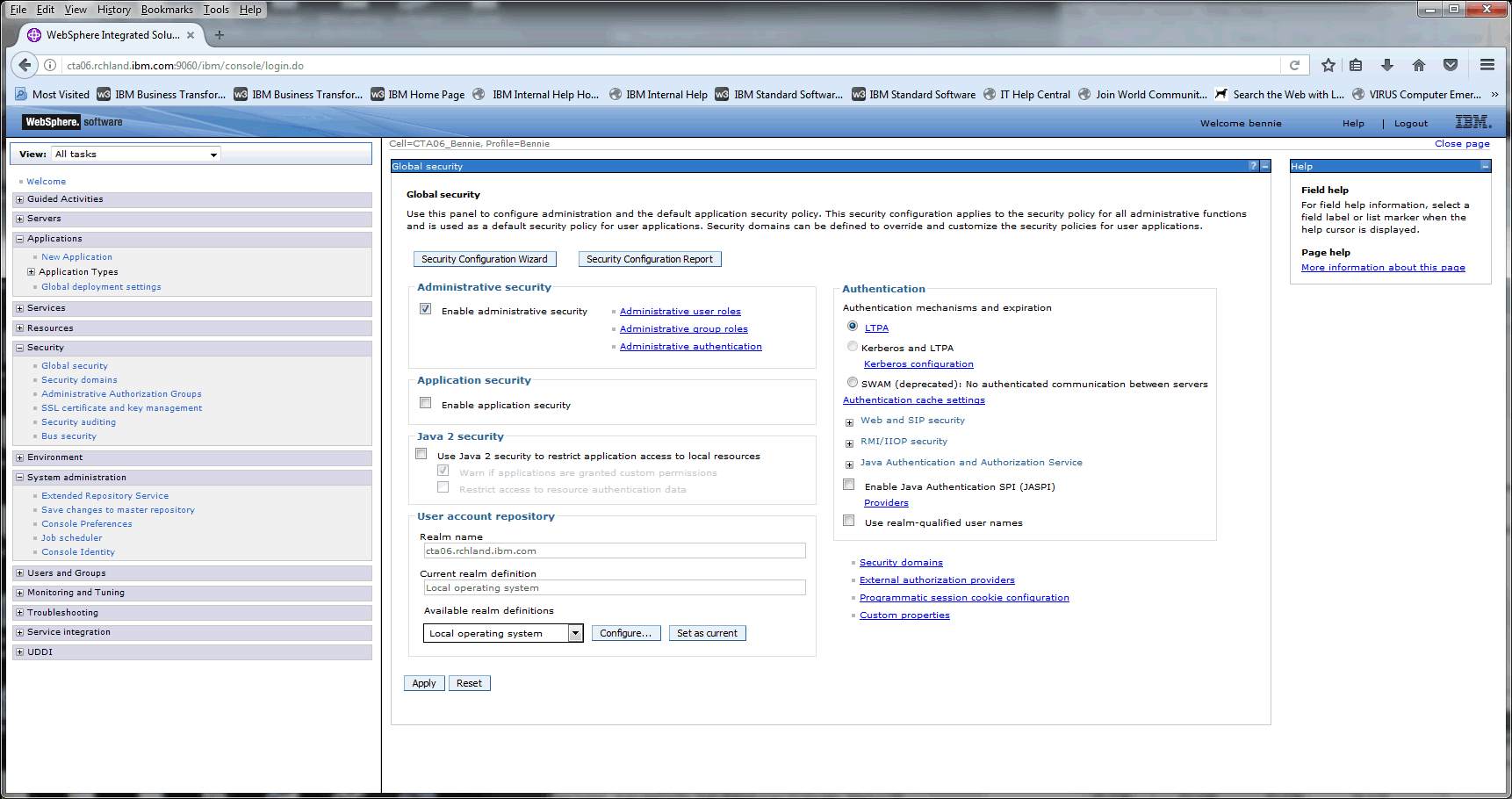
6) Select Security - Global Security

7) Enable Administrative security. Uncheck Enable application security. The purpose of this document is to enable Administrative Security only.

8) Apply and Save your changes. Restart your WebSphere Application Server.


9) Once the server is restarted access your WebSphere Application Server Administrative console. This is a SSL connection, if you see SSL errors accept the exception to continue. You will be prompted for a user ID and Password

Once above steps are completed we should be able to login to websphere admin console with OS local id and password .

Configure WebSphere to use the other id's as Deployer,monitor,operator or any other roles as per requirement

  1. Ensure that WebSphere is running.
  2. In WebSphere Administrative Console, select Security > Global Security.
  3. Under Administrative security, select Administrative user roles.
  4. Click Add and do the following:
    1. Type * in the search box and click search.
    2. select the roles under roles.
    3. Add the newly created user to Mapped to role .
  5. Click OK and save your changes.

javax.net.ssl.SSLHandshakeException: java.security.cert.CertificateException: No subject alternative DNS name matching ip address found

 We are trying to update JAVA version packed with WebSphere . After we update JAVA we started getting below error when connecting LDAP over SSL . Due to this error we are not able to login to WebSphere Admin console as well as Application that used LDAP that was integrated with in WebSphere .

Root Cause:

The reason this error in java 1.8.0_181 is because this update includes security improvements for LDAP support. “Endpoint identification” has been enabled on LDAPS connections.

According to JDK 8u181 Update Release Notes, endpoint identification algorithms have been enabled by default to improve the robustness of LDAPS (secure LDAP over TLS) connections.

Solution

1)Regenerate the LDAP server certificate so that the certificate's subject alternate name or certificate's subject name matches the hostname of the LDAP server.

2)Disable endpoint identification by setting the system property:

com.sun.jndi.ldap.object.disableEndpointIdentification=true

If LDAPS in enabled and LDAPAuthentication is active Registry in WebSphere then follow below steps to add JVM argument .

For Standalone profile follow below steps

1.Disable security by manually by editing security.xml under WAS_HOME/config/cells/Cell01/ update enabled="false" first occurrence in the file .
2.Kill the Admin server process.
3.Now start the Admin server .
4.Login to the Admin console and add JVM argument  -Dcom.sun.jndi.ldap.object.disableEndpointIdentification=true
5.Update security.xml with enabled="true" and start standalone profile with startServer.sh server1 and try to login with Ldap id 

For Network Deployment follow below steps

Application Server1. In the Administration Console select Servers
2. Expand Server Type and select WebSphere application servers
3. Click on the name of your server
4. Expand Java and Process Management and select Process Definition.
5. Under the Additional Properties section, click Java Virtual Machine.
6. Scroll down and locate the textbox for Generic JVM arguments.
7. -Dcom.sun.jndi.ldap.object.disableEndpointIdentification=true Click on Apply Save the Changes and Restart the WAS
Nodeagent1. In the Administration Console, select System Administration
2. Select Node agents
3. Choose which nodeagent to edit
4. In the Server Infrastructure section, expand Java and Process Management and select Process Definition.
5. Under the Additional Properties section, click Java Virtual Machine.
6. Scroll down and locate the textbox for Generic JVM arguments.
7.  -Dcom.sun.jndi.ldap.object.disableEndpointIdentification=true Click on Apply Save the Changes and Restart the WAS
Deployment Manager1. In the Administration Console, select System Administration
2. Select Deployment manager
3. In the Server Infrastructure section, expand Java and Process Management and select Process Definition.
4. Under the Additional Properties section, click Java Virtual Machine.
5. Scroll down and locate the textbox for Generic JVM arguments.
6.  -Dcom.sun.jndi.ldap.object.disableEndpointIdentification=true Click on Apply Save the Changes and Restart the WAS

Enable Ciphers on Websphere application server


Is it possible to enable TLS_RSA_WITH_AES_256_CCM cipher on Websphere ??

We might have a requirement to enable custom ciphers on Websphere application server . I have verified on the WAS console

SSL certificate and key management > Manage endpoint security configurations > Node01 > SSL configurations > SSLSettings > Quality of protection (QoP) settings

This configuration is applicable for both inbound and outbound connections.
I could see TLSv1.2 enabled Cipher suite groups (Custom ) is selected .On the list of ciphers i could not see TLS_RSA_WITH_AES_256_CCM,TLS_RSA_WITH_AES_128_CCM ciphers . Other ciphers are available and since we use RSA signed certificate ECDSA ciphers are not applicable .

if we use ECDSA signed certificate then RSA ciphers are not applicable . Even if we select all the ciphers from the custom at the end Java applicable supported ciphers will be decided by the crypto policy on java security and TLS algorithm that are enabled and the type of certificate used

** Cipher suites that use AES_256 require the JCE Unlimited Strength Jurisdiction Policy Files.

The jdk.tls.disabledAlgorithms system property takes precedence; a cipher suite can be in the default enabled list but be disabled by that system property.

To support RSA256 we need to download ibm unlimited strength jurisdiction policy files( jar files ) and copy to IBM jre/lib/security/

if you want to update your policy files, click on the following link to navigate to the download site:

https://public.dhe.ibm.com/ibmdl/export/pub/systems/cloud/runtimes/java/security/jce_policy/

End of changes for service refresh 5 fix pack 20

Start of changes for service refresh 5 fix pack 10By default, the IBM SDK provides unlimited strength JCE jurisdiction policy files.

To use the limited jurisdiction policy files, set the property crypto.policy=limited in the java.security file

Start of changes for service refresh 5 fix pack 10The following policy files are included:
Unlimited jurisdiction policy files
jre/lib/security/policy/unlimited/US_export_policy.jar
jre/lib/security/policy/unlimited/local_policy.jar
Limited jurisdiction policy files
jre/lib/security/policy/limited/US_export_policy.jar
jre/lib/security/policy/limited/local_policy.jar

CCM Ciphers are not supported by Websphere application server . Have checked those ciphers are not supported. Websphere application server support ciphers based on java.

Please refer to the page : ##Cipher suites

https://www.ibm.com/support/knowledgecenter/SSYKE2_8.0.0/com.ibm.java.security.component.80.doc/security-component/jsse2Docs/ciphersuites.html

At the end of all configuration and restart of the Websphere service we need to verify what are the ciphers that are effected to the port .

Easy . Just see the below code snippet

Replace Server and port on the below snippet and run the for loop .It will list all the Protocols and ciphers supported by the port on the server
We can use the same snippet to get the ciphers and protocols from from remote server also
This can only run from Linux/Aix/Sol server


for v in ssl2 ssl3 tls1 tls1_1 tls1_2 tls1_3; do
   for c in $(openssl ciphers 'ALL:eNULL' | tr ':' ' '); do
     openssl s_client -connect SERVERIP:PORT -cipher $c -$v &lt; /dev/null > /dev/null 2>&amp;1 &amp;&amp; echo $v:\t$c
  done
done

Top WebSphere Application Server Interview Question and Answers

 1.)What is the Request flow from client in WebSphere Environment ?

In general on a fully configured Environment the request flow will have many passes .An example is shown in the below .

Browser --> DNS Server --> Load Balancer --> WebServer(IHS) --> IBM Plug-in --> WebSphere Application Server ( Can have multiple JVM's)

From Browser ( It can be IE,Chrome,Firefox,Mozilla ..etc ) or from the mobile app's the http or https request will be triggered . ex https://askmiddlewareexpert.com/test . Now the request will be sent to DNS for Host to Public IP resolution if the site is Public . It will get the public IP then the Internet Provider will route the traffic to Organisation Network by which the Public IP is registered . In the organisation Public IP Nat'ed to a Private IP . Private IP can be SLB( Load Balancer ) of the WebServer IP . From WebServer based on the context route (test) it verified the Plugin loaded information with the context route it get the JVM that server's the request .If there are multiple server's that serving the application request based on the load balancing algorithm traffic is redirected back to Application Server .

Application server may have DB connectivity ,LDAP connectivity ,AD connectivity ..etc depending on the Application requirement .

2)What are the environments you support?

Be honest and explain the environments you support. You may be supporting the following.Some org may have more .

Development
SIT
UAT
DEMO
Pre-production
Production
DR

3)What are the WebSphere editions available?

WAS – Network Deployment
WAS – Developers
WAS – z/OS
WAS – Hypervisor
WAS – Express
WAS – Base
WAS – Liberty core

4)What’s a command to stop and start DMGR, Nodeagent & JVM?

To stop

JVM – stopServer.sh JVMNAME
Nodeagent – stopNode.sh
DMGR – stopManager.sh
To start

JVM – startServer.sh JVMNAME
Nodeagent – startNode.sh
DMGR – startManager.sh

Note: Stopping of any WebSphere service need an ID and password . If we don't want to pass then the userid and password should updated in soap.client.properties file

5)How to increase the heap size of JVM?

Login to Administrative Console
Go to servers >> Server types >> WebSphere application server
Select the JVM >> Process definition >> java virtual machine
You can enter initial and maximum heap size here. These changes require restart .

For 32 bit operating systems Max Heap size will be 1536MB only . There is not limit for 64 bit machines

5)Explain what is node, node agent and node groups?

Node: It is a logical grouping of server processes maintained by WebSphere and that share common configuration and operational control
Nodeagent: Each node has a nodeagent that works along with the deployment manager to manage administration processes. It acts as a mediator between the node and deployment manager
Node Group: A node group is a grouping of nodes within a cell that have same capabilities . This is optional not see in many environments.

6) Explain what is a cell in WebSphere?

A cell is referred as a grouping of nodes into a single administrative domain. A cell can have multiple nodes which are all managed from a single point.One Deployment Manager will have only one cell. Each AppNode have its own cell name but once federated to DMGR then DMGR cell will be used for App Node as well .

7)What is WAS plugin configuration file name?

WebSphere plugin configuration name is plugin-cfg.xml . We can generate from genPluginCfg.sh file from the DMGR . It consists for SeverGroup/Cluster Information , JVM names and its ports ,Deployed application and it context roots,Virtual host and it mappings . In one shot all the information that is required for Web Server to route the traffic to back end App Server will be available in a single file . This file is xml and can be editable or manual modifications .

8)What is a Plugin? Where is it installed?

A. WebSphere plug-in integrates with the HTTP Server and directs requests for WebSphere resources (servlets, JSPs, etc.) to the Websphere application server. The WebSphere plug-in uses a configuration file called plugin-cfg.xml file to determine which requests are to be handled by WebSphere. As applications are deployed to the WebSphere configuration, this file must be regenerated (typically using the Administration Console) and distributed to all Web servers, so that they know which URL requests to direct to WebSphere.

9)Which script to change the Java SDK used by profile?

managesdk.sh script is available in bin folder which will help to change the SDK. When we install Websphere it is shipped with one JVM version let say JAVA 1.7 and Our Application need JAVA 1.8 we can install Java 1.8 and update WebSphere to use JAVA 1.8 using managesdk.sh script .

10)Can you change the context root for deployed application?

Yes, it’s doable. To do this through the administrative console, go inside the application and click “Context root for web modules” to change the context root. Doing this change require restart of WebSphere Application server ,update of plugin-cfg.xml file .

11)How to change WebContainer thread pool size?

WebContainer thread pool can be changed by going inside JVM >> Thread pools >> WebContainer

JVM Restart required for this change.

12)What is the registry or repository supported in WebSphere?

Federated repository
Local operating system
Standalone LDAP registry
Standalone custom registry

13)What is the default session timeout for an administrative console?

Default is 30 minutes . This is configurable .

14)What is a fix pack?

A fix pack is a collection of patches provided by IBM. It may contain bug fixes, security patches & performance improvements. EX : 8.5.5.18,9.5.0.2 ..etc

15)Mention some of the features available in Websphere?

Some of the features available in Websphere includes

It supports the servlet/JSP container functionality that runs on top of HTTP
It supports HTTP servers as IBM HTTP server, Apache httpd server,Netscape iPlanet server, and MS IIS
It supports Java Server Pages, HTML pages, Servlets and XML
It supports EJB component model and Workload Management.

16)What is node sync?
IBM WAS stores the entire configuration in a central repository called “Master repository,” and every node will have the local repository.

When you make any changes to the node through DMGR, you must sync it, so configuration is pushed to respective node’s server.

Sync always happens from master to local repository, so it’s one-way communication. Node sync are Ad-hoc when we make changes and save then sync , Automatic as per the interval configured and Manual sync using syncNode.sh

17)Mention what are the default ports you use to use WebSphere Application Sphere?

The default ports you use are HTTP: 9080 and HTTP: 9443 for JVM

For DMGR 9080 and 9043 for https

18)some of the log files generated by WebSphere?

SystemOut.log
SystemError.log
native_stdout.log
native_stderr.log

19)How to generate a thread dump?

There are three possible ways to generate a thread dump.

Through DMGR console: Go to Troubleshooting >> Select the JVM and click on Java core
Kill -3 PID of JVM
Using wsadmin.sh

20)How do you know if your JVM is up or not?

There are multiple ways to confirm this.

Do you have any monitoring tool if so check if there is an alert or current status
Login to a server and grep for the JVM by ps -ef | grep jvmname
Check if you can access the JVM URL
Check if you can telnet JVM URL and port
Check if JVM port is listening on the server
Use serverStatus.sh –all command to see what is running


21)How to check the installed WAS version?

Go to profile and bin folder
Execute ./versionInfo.sh

22)What are the common issues you have experienced?

Below are some of the general issues experienced during day to day operations

Virtual host not defined
Logs not moving
Internal Server Error
OutOfMemory exception
Slowness
JVM not starting
High CPU/Memory/Disk utilization

23)What is a virtual host?

Virtual host is a configuration that enables to use multiple FQDN's and allow mapping traffic to the back end AppServer from WebServer. Virtual host contains multiple URLs (IP or FQDN based) on a single application and configuration is done through WAS administrative console.

In order to allow an application to be accessible on particular URL, you must have this URL in a virtual host and associated with the application.Every time when we modify or update Virtual host on the Application server then Restart is required also same has to be updated on the WebServer plugin.

24)How do you disable security in WebSphere?

You can disable security by executing “securityoff” through wsadmin.sh. DMGR must be restarted after switching off the security. or go to security.xml and update enabled="false" from enabled="true" [ Look for the first occurance in the file] . Take backup of the file for safe always .

Once security is disabled and restart then we dont need id to login to WAS console .

25)What’s a difference between vertical and horizontal cluster?

The vertical cluster has its member on same node or server where horizontal is across multiple nodes and servers in a cell. Vertical cluster has disadvantage of Single point of failure where as in Horizontal cluster if one Sever goes down still have other server with JVM up and running .Hence it is highly recommended in Production environments

26)How to enable verbose garbage collection?

Verbose GC is not enabled by default and if you need you can do it by;

Servers >> Server Type >> WebSphere Application Server
Select the JVM >> Process definition under “Java and process management”
Click Java virtual machine under “additional properties” and tick the checkbox for “verbose garbage collection.”

27)How do you connect Web Server to WAS?

There are two ways to connect to WAS.

Using plugin – this is the recommended method to install WAS plugin on a web server and use plugin-cfg.xml file
Using ProxyPass & ProxyPassReverse – if you are using Apache and don’t want to use the plugin then you can connect to WAS JVM by ProxyPass & ProxyPassReverse directive.

28)What is shared libraries?

Creating a shared library is recommended to reduce the duplicate library files. The single shared library can bed used by multiple applications within a cell.

29)What is context root?

A context root for each application should be unique within the cell. It’s defined n deployment descriptor and used to access the application.

For an ex: if application A has context root called “retail” then an application will be accessible from http://servername:port/retail

30)Can you decode WebSphere keystore XOR?

Yes, you can through online tool – http://www.poweredbywebsphere.com/decoder.html

any password in Websphere with XOR can be decrypted using above url .unless the password is encrypted using custom jar

31)Mention how many ways you can deploy the application in WebSphere?

In Websphere application can be deployed in three ways

Copy files directly to deploy application folder in websphere
Use websphere specific ant tasks create automated scripts for deploying application
Via administration console

32)Mention what are the Websphere MQ programming APIs?

Websphere MQ programming APIs include

AMI (Application Messaging Interface)
JMS (Java Message Service)
MQI (Message Queue Interface)

33)Can application run without any issue if DMGR is down?

Yes, DMGR down doesn’t impact existing running application. However, if you need to make any changes or deployment through DMGR, then that would be affected.

34)How to take WAS configuration backup without stopping the DMGR?
Go to DMGR profile and bin folder

Execute ./backupConfig.sh -nostop to take a backup

35)What is the session affinity?

Session affinity in another word is persistence session. Having session affinity allow a request to bind with single JVM. It means the returning request will always be routed to the same JVM. This is possible because plugin used jvm clone id information to maintain the session affinity .

update WebSphere Application Server Service password on Windows System

 Here we will see how to update the password for DMGR service . Same setups are applicable for AppNode ,Admin Node ,Node agent etc .

1) Change password of wsadmin(primary admin user) from WAS admin console.
2) Updated dmgr service
C:/u01/IBM/WebSphere/AppServer90/bin>WASService -add “CellManager01” -serverName dmgr -profilePath C:/u01/IBM/WebSphere/AppServer90/profiles/Dmgr01 -logRoot C:/u01/IBM/WebSphere/AppServer90/profiles/Dmgr01/logs -stopArgs “-username wsadmin -passowrd wsadmin1”

Adding service:CellManager01
             Config Root:  C:/u01/IBM/WebSphere/AppServer90/profiles/Dmgr01/config
             Server Name:  dmgr
             Profile Path: C:/u01/IBM/WebSphere/AppServer90/profiles/Dmgr01
             WAS Home:  c:/u01/IBM/WebSphere/AppServer90/
             Start Args:  
             Restart:  1
Service already exists, updating parameters…
c:/u01/IBM/WebSphere/AppServer90/bin>

Since we use existing service name hence it will update the parameters other wise it will create new service with the given parameters .

3)Check stopArguments parameter was updated in windows registry

HKEY_LOCAL_MACHINE\SYSTEM\CurrentControlSet\Services\\Parameters

stopArguments -username wsadmin -passowrd wsadmin1

we can check detail in the following url https://www.ibm.com/support/pages/node/81875

4) Stop dmgr using a new password
c:/u01/IBM/WebSphere/AppServer90/bin>WASService -stop “CellManager01”  “-username wsadmin -passowrd wsadmin1”
Successfully stopped service.
c:/u01/IBM/WebSphere/AppServer90/bin>

Note : WebSphere only require Username and password for stopping the service but not needed for starting the service . 

WebSphere disable http to https redirection Admin

 Due to some reason i am not able to access https page . When i browse the page getting below Error . Tried to check openssl connectivity still admin port doesn't reflect certificate but App https port is working fine .Now thinking to access admin http port but it is redirecting to https due to Admin security enabled .

This page can’t be displayed

Turn on TLS 1.0, TLS 1.1, and TLS 1.2 in Advanced settings and try connecting to again. If this error persists, it is possible that this site uses an unsupported protocol or cipher suite such as RC4 (link for the details), which is not considered secure. Please contact your site administrator.

please verify that you're using the correct secure port number to access the WAS Admin Console: Open the serverindex.xml ${WAS_INSTALL_ROOT}/profiles/your_profile/config/cells/your_cell/nodes/your_node/* to determine the value of WC_adminhost_secure - the HTTPS port being used by the WAS Admin Console.

Found from the IBM documentation There is no way to enable Admin http port when security is enabled . If we disable security then any one can login to Admin console without credentials .It is not recommended for the time being to check configuration on Admin console or to make any changes we can go with this approach .

Disabling Admin security can be done in 2 ways. 1 way is by using wasadmin and 2nd way is by using manual security.xml file edit

1. <WAS_PROFILE_HOME>/bin/> wsadmin -conntype NONE
2. wsadmin> securityoff
3. wsadmin> exit
4. Restart the servers (running Java processes should be stopped)
Disable security manually
1.Go <WAS_PROFILE_HOME>/config/cells/CellName01/
2.Take backup of security.xml 
3.find enabled="true" in the file . Look for the first occurence and change to enabled="false"
Now restart the server and try to login to Admin with https  

Once security is disabled then we can investigate further .

Conclusion :There is no way to disable ssl for the admin console when security is enabled. The unsecure port can only be accessed when global security is disabled.

WebSphere startup failed

 We applied 8.5.5.18 . Patch was successful but unable to start the JVM successfully . Found below error's from the logs .

----- SystemOut.log ------

[11/7/20 12:32:52:691 SGT] 00000001 ORBRas E com.ibm.ws.orbimpl.transport.WSTransport createServerSocket P=571909:O=0:CT ORBX0390E: Cannot create listener thread. Exception=[ org.omg.CORBA.INTERNAL: CAUGHT_EXCEPTION_WHILE_CONFIGURING_SSL_SERVER_SOCKET, Exception=com.ibm.websphere.ssl.SSLException: java.lang.IllegalArgumentException: No key store specified and no hardware crypto defined vmcid: 0x49421000 minor code: 77 completed: No - received while attempting to open server socket on port 9403 ].

------ ffdc ------

[11/7/20 12:32:52:519 SGT] FFDC Exception:java.lang.IllegalArgumentException SourceId:com.ibm.ws.ssl.provider.AbstractJSSEProvider ProbeId:601 Reporter:com.ibm.ws.ssl.provider.IBMJSSE2Provider@447ddf8a
java.lang.IllegalArgumentException: No key store specified and no hardware crypto defined

These errors were usually outputted by wrong password.
And also found the following settings.

------ server.xml ------

<sessionDatabasePersistence xmi:id="SessionDatabasePersistence_1183122130078" datasourceJNDIName="jdbc/Sessions" userId="admin" password="{custom:AES} ... />

<keyStores xmi:id="KeyStore_HostNode01_1" name="NodeDefaultKeyStore" password="{custom:AES} ... location="${CONFIG_ROOT}/cells/HostNode01Cell/nodes/HostNode01/key.p12" ... />

<keyStores xmi:id="KeyStore_HostNode01_2" name="NodeDefaultTrustStore" password="{custom:AES} ... location="${CONFIG_ROOT}/cells/HostNode01Cell/nodes/HostNode01/trust.p12" ... />

<keyStores xmi:id="KeyStore_1485154633124" name="JavaStandardTrust" password="{custom:AES} ...  location="F:\IBM\WebSphere\AppServer85\java\jre\lib\security\cacerts" ... >

<keyStores xmi:id="KeyStore_1486029607135" name="Keystore" password="{custom:AES} ... location="F:\SCM\SSL\keystore.jks"... />

From these settings, thought that the environment use customized password encryption.

Starting from WebSphere 8.5.5.18, WebSphere started to support aes encryption.

  • PH25806: ADD PASSWORD ENCRYPTION SUPPORT FOR PASSWORDUTIL INTO TWAS 8.5.5 https://www.ibm.com/support/pages/apar/PH25806 If the following properties are set in your environment,
  • com.ibm.wsspi.security.crypto.customPasswordEncryptionClass=com.acme.myPasswordEncryptionClass
  • com.ibm.wsspi.security.crypto.customPasswordEncryptionEnabled=false

Please try "com.ibm.wsspi.security.crypto.customPasswordEncryptionEnabled=true".

In the environment custom jar is placed in lib/ and used for the CUSTOM password encryption . but due to the change from 8.5.5.18 issue happened and IBM addressed this issue with Interim fix PH25806

When we apply PH25806 issue resolved .

Monday, May 11, 2020

How to clear WebSphere tmp files

 It is better to always remove temp and wstemp when there is any update with application or re-deploy the application . But safer to take backup of the complete profile before making any deletion .

profile_root//temp and profile_root//wstemp these are the location of the temporary files in Websphere Application server .

WebSphere Application Server uses multiple temporary locations for many reasons. This post explains the most commonly used temporary files, why they are used and when they can be removed. This blog will also explain the files and directories that can be removed under the profile direction with caution.

Important:

  • Be careful in deleting any temporary, cache and log files in WebSphere Application Server!
     
  • Before making any changes to the environment , take a backup of the profile. It can be a tape backup, using the backupconfig tool, or using the manageprofile -backupProfile option.

    profile_root example: C:/WebSphere/AppServer/profiles/profile_name
    install_root example: C:/WebSphere/Appserver

Let's describe the different files and their locations:

  • profile_root/wstemp
    Usage: wstemp is a workspace temporary directory. Any changes that you make to the configuration are stored in the wstemp directory temporarily. For example, if you are changing the heap size for an application server, the change is stored in the wstemp location until you save the changes. The concept is same for any administrative client, such as the Integrated solution console, wsadmin or JMX, that you use to make the changes.

    Caution: The WebSphere Application Server administrative console stores a preferences.xml file in install_root/wstemp/<workspace_id>. This file contains user preferences on administrative console layout and actions. It is created when you log onto the administrative console. If you remove this file, you lose the user preferences; however,  the preferences can be created again the next time you log onto the administrative console.

    Do not delete the wstemp files when the server is running (especially deployment manager or node agent servers). This approach can cause unexpected results. Also, do not delete the files when you are unsure about the changes that you made to the configuration. Save any pending changes, stop the deployment manager or node agent, which depends on whether you are removing the dmgr wstemp or node wstemp, and then delete the wstemp files.

    Why remove these files?: Files in the profile_root/wstemp directory can be removed. Restart the server process after removal. Because the directory is  used by multiple clients, some times you might see multiple files and subdirectories left behind in this directory. For example, when you use the ConfigService MBean to make changes to configuration and you do not discard the session in the code, this directory will never get deleted. Another reason is corruption in the workspace. Corruption can happen when multiple users make changes to the same configuration at the same time.
     
  • profile_root/temp
    Usage: The temp directory is used by multiple WebSphere components. Two good examples are compiled Java ServerPages (JSP) files and web service cache files. Compiled JSP class files (servlets) are stored in this location. The directory might get regenerated when you invoke the JSP again. However, you might experience a performance issue when you invoke the JSP for the very first time after the JSP compiled files have been removed.

    Caution:  Be cautious if you have a web services application deployed on the node. The wscache.xml is generated during the deployment process and stored under the temp directory. You have to redeploy the web service application to generate the wscache.xml again. You may experience some performance issue with large and complicate webservices application

    Why remove these files?: Corrupted JSP files or any non-root permission issues might cause the server start up issue.

Never delete any other files or directories for WebSphere Application Server unless otherwise directed by the IBM Support team.

Featured

Weblogic Domain Migration

 In this blog we will see domain re-configuration which will be done as part of Weblogic migration from lower version to higher version [ Ex...